
Last Saturday evening, a family in Seattle wanted to watch Sunday Night Football on their smart TV. But, the game started and then the spinning wheel appeared. They had a gigabit plan from Comcast and a modern Roku stick, yet Live TV kept buffering at the worst moments. This pause made everyone check their phones for fixes while the kickoff slipped away.
This scene is common for cord-cutters and smart TV owners. Even with fast plans, streaming buffering in 2026 is a big frustration. Live TV buffering causes include Wi-Fi placement, network congestion, and cached data on Samsung or LG TVs.
Other causes are outdated Roku or Amazon Fire TV apps, or the demand for 4K streams that use more data than HD.
The good news is many buffering solutions are quick and easy. Simple steps include running a speed test at the TV, restarting the router and the streaming device, and switching to Ethernet when possible. Lowering video quality and clearing app cache can also help.
If these don’t work, try router settings like QoS, check DNS, or contact your ISP and the streaming service (Netflix, Disney+, Amazon Prime Video, YouTube) for outages or throttling.
Key Takeaways
- Live TV keeps buffering often because several issues overlap: network, device, and service.
- Start with basic buffering fixes: speed tests, router and device restarts, and lower stream quality.
- Use Ethernet for the most stable connection when possible.
- Check device updates and clear cache on Roku, Fire TV, and smart TVs.
- Escalate to ISP or service provider checks if home fixes don’t stop buffering.
Why Live TV Keeps Buffering
Live TV buffering happens when the stream can’t keep up. For live broadcasts, data must arrive in real time. So, any delays show up quickly.
This brief intro explains what buffering means for live streams. It also covers how live latency vs on-demand playback changes the issue. Plus, it points out simple signs for identifying buffering network vs device vs service causes.

What buffering means for live streams
Buffering in live streams is all about timing. Live feeds have little content preloaded. If packets slow or drop, the player stalls or changes quality to catch up.
Viewers might see stutters, frozen frames, or sudden quality changes. This can happen during sports, news, or concerts.
How live streaming latency and buffering differ from on-demand playback
Live streaming vs on-demand playback is about preloading. On-demand videos can buffer ahead of time. But live streaming must stay near real-time.
This means live streaming is more likely to buffer. And it’s more noticeable than when watching saved movies.
Common signals that point to buffering network vs device vs service
- Network signs: slow speed tests near the TV, repeated evening slowdowns, or many devices stalling at once. These suggest ISP limits or household congestion.
- Device signs: only one TV or streaming stick lags, the interface feels sluggish, or the box is warm to the touch. These point to a device cache, outdated firmware, or hardware strain.
- Service signs: one app buffers while others run fine, or social media reports an outage. That pattern indicates provider or server-side load rather than home network trouble.
Use targeted checks to find the problem. Run a speed test near the set, try another app, and restart the TV and router one at a time. These steps help figure out if buffering is due to your internet, device, or streaming service.
Check Your Internet Speed and Bandwidth Requirements
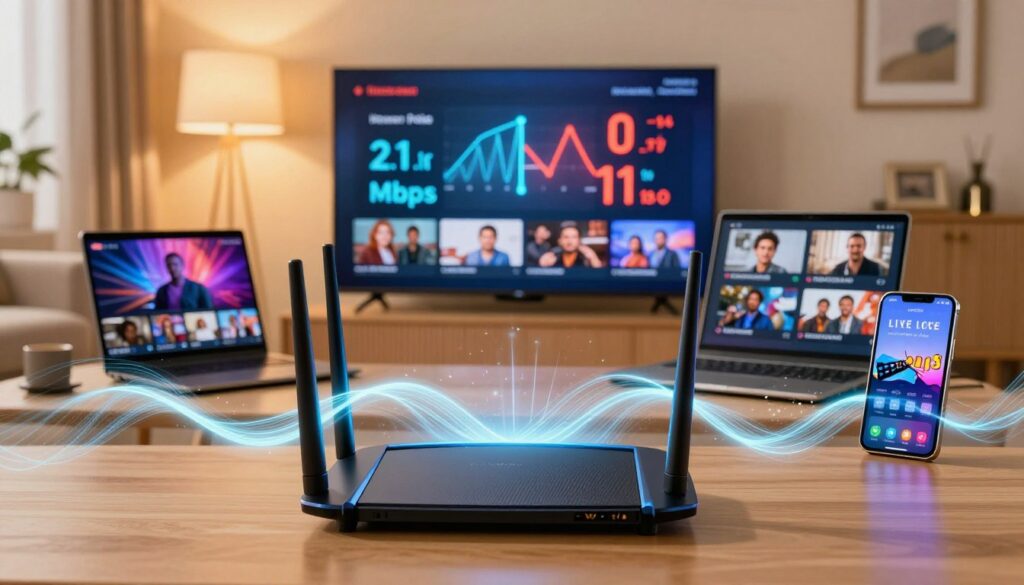
Speed tests can show why live TV buffers. Test near the TV to see real speeds. Take many readings, especially during busy hours.
Recommended speeds depend on quality and how many watch. For HD, you need 5–10 Mbps. For 4K, aim for 25 Mbps per stream. Add 5–25 Mbps for each extra stream.
Use trusted sites for speed tests. Follow speedtest.net tips: test next to the device, close apps, and test at different times. Check both download speed and latency.
If speeds are low, try restarting your modem and router. Unplug for 30 seconds, then start again. Run tests after. If still slow, contact your ISP.
Think about upgrading your plan for more speed. A better plan can solve buffering issues and meet your household’s needs.
Network Congestion and Peak-Time Slowdowns
Even with good internet speeds, household traffic can cause live streams to stutter. Devices like phones, tablets, and smart speakers all use the same connection. When many devices want bandwidth at once, live TV buffering and poor picture quality can happen.
How household device usage affects available bandwidth
Streaming games on Xbox, using Zoom on laptops, and syncing photos on phones can compete with TV streaming. Small tasks quickly add up. If someone starts a big download or cloud backup, your live show’s quality will suffer.
Evening peak times and ISP-level congestion or throttling
Most people stream at night. This increases neighborhood demand. Internet service providers might lower speeds for many users due to local congestion. Some ISPs also use content-based shaping, affecting streaming during busy times.
Quick steps to reduce congestion: pause downloads, disconnect idle devices
- Pause large downloads and cloud syncs while watching live TV to reduce Wi-Fi congestion.
- Disconnect or turn off unused devices to free bandwidth for the streaming box or smart TV.
- Schedule automatic updates and backups for overnight hours to avoid peak time buffering.
- Enable Quality of Service (QoS) or device prioritization in your router to favor the TV.
- If local congestion persists, contact your ISP about peak performance or consider a higher-tier plan.
Managing devices can quickly improve streaming. If buffering continues, try streaming at different times. This will help figure out if ISP-level congestion is the issue.
Wi‑Fi Strength and Router Placement
Weak Wi‑Fi can ruin your streaming experience. Physical barriers, distance from the router, and appliance interference can weaken the signal. This often causes live TV to buffer, even with enough speed.
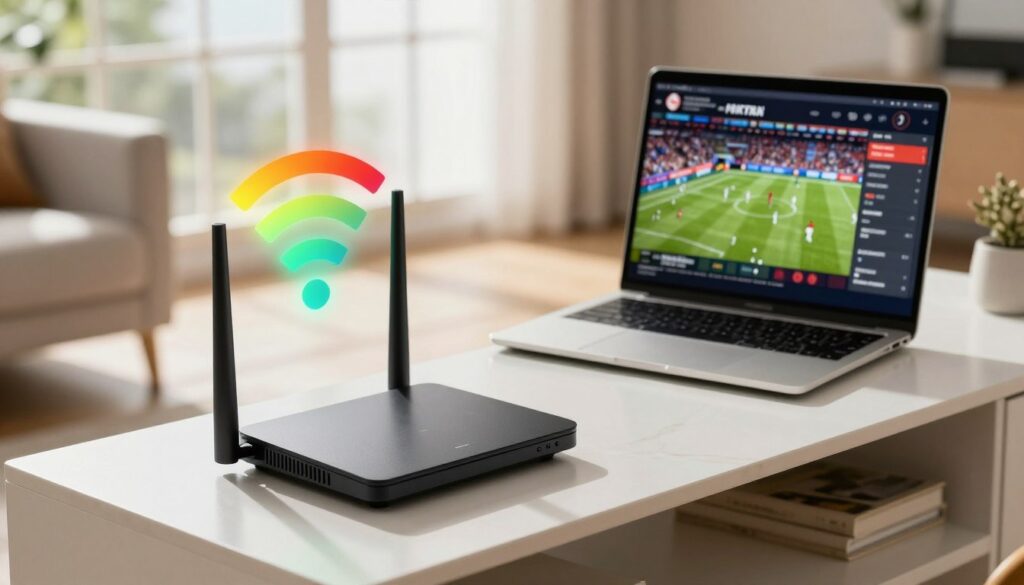
Small changes in router placement can make a big difference. Place it high and in the center of your home. Avoid cabinets and metal objects. A few feet of movement can improve your TV’s connection and reduce buffering.
Choose the right band for your needs. Use 5 GHz for better performance close to the router. Switch to 2.4 GHz for longer range and better wall penetration. Many devices work best with both bands enabled.
Choosing between an extender and a mesh system depends on your situation. An extender is good for a single weak room on a budget. A mesh system offers consistent coverage in larger homes and reduces streaming drops. It’s about coverage versus cost.
Follow practical router placement tips. Keep it elevated, away from microwaves and baby monitors, and point antennas toward the living area. If a streaming stick is flaky, improve its line-of-sight to the router or use an Ethernet adapter.
| Issue | Quick Fix | When to Upgrade |
|---|---|---|
| Signal blocked by walls or floors | Move router to a central, elevated spot | House has multiple floors or thick walls |
| Interference from appliances | Relocate router away from microwaves and cordless phones | Many legacy wireless devices in home |
| Single room weak signal | Add a Wi‑Fi extender or reposition devices | Budget constraint, occasional use of that room |
| Whole‑house dropouts and multiple dead zones | Install a mesh Wi‑Fi system for seamless coverage | Large home, many streaming devices |
| High throughput needed near TV | Use 5 GHz band or wired Ethernet | Streaming 4K or gaming from same device |
| Long-range connection through walls | Use 2.4 GHz band for better penetration | TV located far from router with few speed demands |
Wired Connections, QoS, and Advanced Router Settings
When live tv keeps buffering, a simple fix is a direct cable. Ethernet for streaming offers a steady, low-latency connection. It’s better than Wi-Fi for 4K and multi-device homes. Many smart TVs, Roku models, Apple TV, and Amazon Fire TV boxes have Ethernet ports.
Streaming sticks can use a USB-to-Ethernet adapter for a reliable wired connection. This turns a flaky wireless feed into a steady one.
Quality of Service (QoS) helps by giving video priority during congestion. Use QoS to favor your TV or the streaming app’s ports. Choose a clear rule, like prioritizing the TV’s MAC address or the app’s traffic class.
Before making changes, record the default values. This way, you can easily go back if new settings cause problems for other devices.
Some router settings can also help. Changing DNS targets to Google Public DNS (8.8.8.8) or Cloudflare (1.1.1.1) can speed up domain resolution. But, always back up your router configuration before trying this.
Other tweaks include enabling UPnP for smoother device connections. Also, check for firmware updates from brands like Netgear, ASUS, or TP-Link. Avoid experimental features unless you know their effects.
Test each change one at a time. This way, you can see its impact on buffering and go back if needed.
If live tv still buffers after these steps, try Ethernet for streaming with a focused QoS rule. Also, have a plan for safely rolling back router settings. Small, measured changes often lead to the best, most stable improvements for real-time viewing.
Device-Side Issues: Smart TVs, Sticks, and Streaming Boxes
When live TV keeps buffering, the problem often sits on the device, not the network. Smart TVs and sticks build up cached data and run apps that need updates. Small fixes can stop hiccups fast and help streams play smoothly again.
How cached files and old software slow playback
Smart TVs and streaming boxes store temporary files. Over time, those files can conflict with app updates. Outdated firmware makes playback less efficient and raises the chance that live TV keeps buffering during high-bitrate scenes.
When to clear TV storage and restart
If a stream stutters, clear TV cache from Storage or Applications in settings, then restart the device. On Roku, clear app cache by restarting the system or using the app options. Regularly clearing cache and rebooting removes transient errors and frees memory.
How to update system and apps
Check for system updates to update smart TV firmware through the device’s System or Software menu. On Roku go to Settings > System > System Update. Update individual apps from their menu to avoid mismatched versions that can cause buffering.
Roku buffering fixes that users can try
- Restart the Roku device or perform a system update.
- Remove and reinstall a misbehaving app.
- Move the Roku or use an HDMI extender if the stick overheats or sits behind the TV.
When hardware limits demand an upgrade
Older boxes may struggle with 4K or high-bitrate streams because of CPU or Wi‑Fi antenna limits. If you tried clear TV cache and updates but buffering persists, consider upgrade streaming device options like Roku Ultra or Fire TV Cube. Newer devices support Wi‑Fi 5/6 and handle streams more reliably.
Routine care that reduces repeat problems
- Restart devices weekly to flush temporary issues.
- Keep firmware and apps current to prevent compatibility slowdowns.
- Ensure adequate airflow around sticks and boxes to avoid thermal throttling.
Streaming Service and App Problems
App problems and server issues can cause buffering, even with a good home network. Services like Netflix, Disney+, and YouTube often face high demand and server updates. These can cause buffering, not your local network.
First, see if the issue is with one service. If only one app has trouble while others work well, it’s likely the service’s fault. Try streaming on mobile data to see if it works better.
Many apps let you adjust settings to use less bandwidth. Try lowering the video quality to 1080p or 720p if streams stall. This can help during busy times and on slower connections. Check each app’s settings for quality options.
If many services are down, check the provider’s status page or social media. If the problem continues and other apps work, contact the service’s support. They can look into the server issue.
Here’s a quick guide to find and fix service problems:
- Play the same content on two different apps at the same time to compare behavior.
- Try mobile data playback to rule out home network faults.
- Temporarily lower resolution to see if reduced bitrate stops buffering.
- Restart the app and update to the latest version before deeper troubleshooting.
| Symptom | Likely Cause | Quick Fix |
|---|---|---|
| Only one app buffers | Provider server issues or app bug | Update app, check status page, test different content |
| Multiple apps buffer | Home network or router limits | Reboot router, run speed test, try Ethernet |
| Occasional stutters during live sports | Demand spikes on live servers | Lower streaming quality, retry after a few minutes |
| Playback fine on mobile data but not home Wi‑Fi | Local Wi‑Fi congestion or interference | Move closer to router, switch bands, unplug idle devices |
Specific Tips for Popular Devices (Roku, Fire TV, Smart TVs)
When live TV keeps buffering, small steps can solve the issue quickly. Start by checking simple things: rebooting, updating, and the device’s placement. Each device has easy steps to follow to reduce interruptions and improve streaming.
Roku devices often need a quick reset. Try restarting from Settings > System > Power > System Restart or unplugging the stick for 10 seconds. These actions help clear out temporary issues and network problems that cause buffering.
To fix Roku buffering, check for System Updates and update apps. If bandwidth is low, change the Display Type from 4K to 1080p. Also, avoid placing a streaming stick in a tight TV port to prevent overheating. Use an HDMI extender to keep the Roku cool and stable.
Amazon Fire TV boxes and sticks need regular updates. Use Settings > Applications to clear app cache when possible. Clearing cache and reinstalling an app often fixes playback issues.
For Fire TV, clear cache steps involve removing cached data for the app causing trouble, then rebooting. If Wi‑Fi is unreliable, consider using a wired Ethernet adapter for a more stable connection and fewer drops.
Smart TV owners should check for firmware updates through the TV’s system menu regularly. When live TV buffers, updating the firmware can fix playback bugs and network handling issues.
Clear application storage or cache on models that allow it and restart the set. If built‑in Wi‑Fi is weak, try Ethernet or add a stronger streaming box. Proper placement away from thick walls helps wireless reception and reduces buffering.
Use these steps for each device: reboot, update, clear cache, lower resolution when needed, and ensure streaming sticks have enough space. This layered approach tackles common causes and keeps shows running smoothly.
Conclusion
Live TV buffering can be fixed with a few simple steps. First, check your internet speed near the TV. Then, try to reduce the number of devices using the internet at home. Rebooting your modem, router, and streaming device can also help.
Switching to Ethernet or using Quality of Service on your router can make a big difference. Make sure your devices and apps are updated. Clearing caches on Roku, Fire TV, or smart TVs can also help.
Lowering the streaming quality during busy times can prevent buffering. If problems still exist, check if the streaming service is working. Contact your ISP to see if there are any line issues or throttling.
This summary focuses on quick fixes: test your speed, restart your devices, try another app, and use wired connections. Update your software and clear caches. For ongoing issues, consider upgrading your router or streaming device.