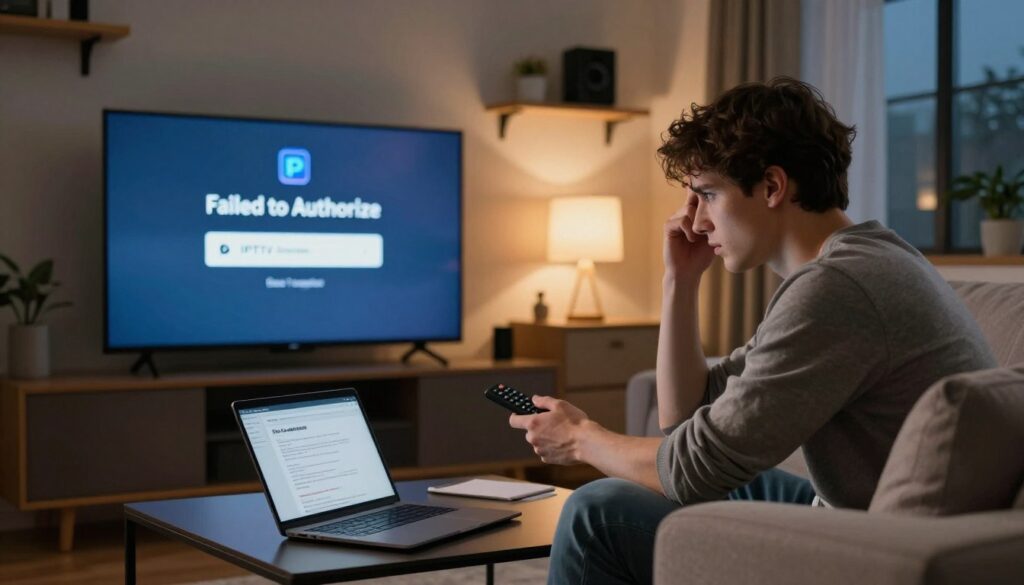
Have you seen the dreaded “IPTV Smarters failed to authorize” message? Wondered if your subscription, device, or network is to blame?
This short introduction explains what that error means. It shows up in IPTV Smarters Pro 2026. The app can’t verify your account with the provider’s host. This can happen due to simple mistakes, network issues, or problems with the provider.
Later sections will dive into how Xtream Codes API and M3U playlist authentication work. We’ll offer practical, tested fixes. These include verifying credentials, opening M3U playlist URLs in a browser, and clearing cache or reinstalling the app. We’ll also cover switching between HTTP and HTTPS, testing ports, and using a VPN when needed. This guide is for Firestick, Smart TVs, Android/iOS, and PC/Mac users to stream without hassle.
Key Takeaways
- “IPTV Smarters Failed” means the app can’t verify your account with the provider host.
- Check for typos, extra spaces, and exact Xtream Codes API fields first.
- Test M3U playlist URLs in a browser to confirm the stream source is reachable.
- Try switching ports, HTTP/HTTPS, clearing cache, or reinstalling the app.
- Use a VPN only if ISP geo-blocking or regional blocks are suspected.
Why IPTV Smarters Shows “Failed to Authorize”
When IPTV Smarters reports “Failed to Authorize,” it means the app couldn’t verify with the provider. This error happens when the app tries to connect but gets no response or is blocked before it can confirm your account details.

What the error message actually means
The “Failed to Authorize” message is clear: the server didn’t confirm your login. Sometimes, you’ll get a direct error like “invalid credentials” or “user blocked.” Other times, the server might not respond, or the response is empty, stopping IPTV Smarters from showing channels and EPG.
How Xtream Codes API and M3U playlist authentication works
Xtream Codes uses a quick API exchange. IPTV Smarters sends your login info to the provider’s Xtream endpoint. If the response is correct, it includes your account status, channel lists, and EPG links, allowing the app to proceed.
M3U playlist auth checks a reachable M3U URL. The app requests the M3U file, parses it, and then allows playback. If the M3U URL is bad, expired, or corrupted, authorization fails like an invalid API response.
Common server responses that trigger authorization failures
Several server responses can cause the error. HTTP timeouts block the verification. 4xx errors like 401 or 404 show bad login info or wrong paths. API errors like “invalid credentials” or “user blocked” also stop access. Empty or corrupted M3U files break the parser and trigger authorization failures.
| Server Response | What It Indicates | Impact on App |
|---|---|---|
| 401 Unauthorized | Wrong username or password | Immediate IPTV Smarters Failed and access denied |
| 404 Not Found | Wrong host URL or path | M3U playlist auth cannot retrieve file; channels missing |
| HTTP Timeout | Network issue, server down, or blocked by ISP | Verification fails; app shows failed to authorize meaning |
| API Error: user blocked | Provider has disabled the account | Authorization denied until provider action |
| Empty or malformed M3U | Expired link or corrupted file | M3U playlist auth fails; no streams parsed |
| HTTPS/HTTP mismatch | Wrong protocol or missing port | Connection refused or redirected, causing failure |
Common Causes Behind IPTV Smarters Failed
When IPTV Smarters shows an authorization error, it’s usually a small problem. Here are the most common reasons and how to quickly find them.
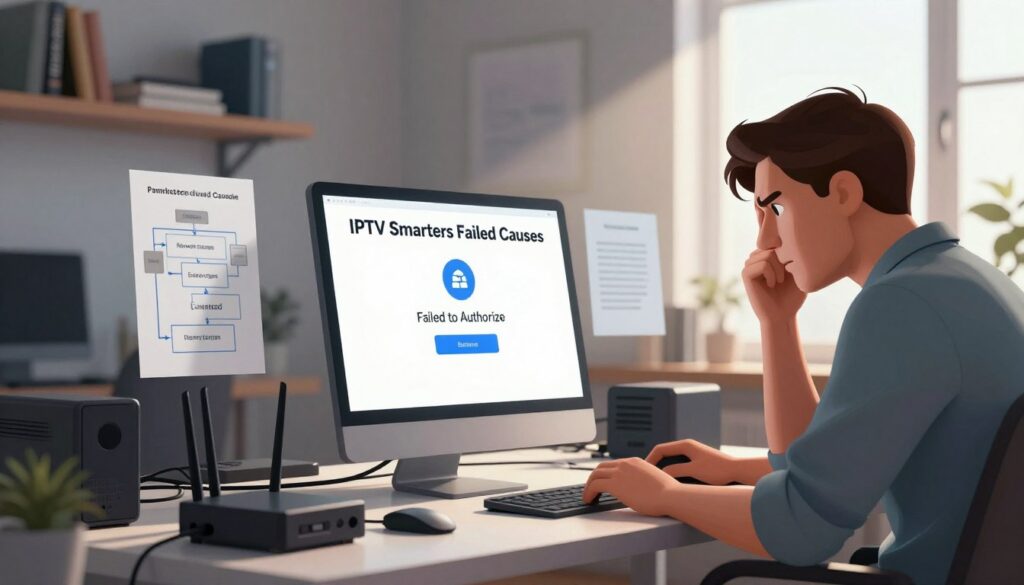
Typo or case-sensitive username and password mistakes are common. IPTV Smarters is strict about case. A simple retype or using a password manager can solve these issues.
Expired subscriptions and provider-side account issues also cause problems. If your plan has lapsed, access is denied. Contacting your provider can clear up any doubts.
Using the wrong or outdated host URL can also cause issues. Services often change their domains or ports. Check the host URL in a browser and compare it to the provider’s instructions.
ISP or regional blocking can prevent server verification. This affects users in the United States, the UK, France, and Ireland. Using a VPN or switching networks can help find the issue.
Device-level app issues can look like server problems. Corrupt cache, outdated app builds, or host rules for Smart TVs can cause failures. Reinstalling the app and testing on different devices can help find the problem.
Quick Pre-Checks Before Troubleshooting
Start with a few fast checks to narrow down the cause when IPTV Smarters fails to log in. These steps save time and often solve the problem without deep troubleshooting.
Verify your subscription status with your provider
Contact your provider to confirm the account is active, not expired, and not suspended. Ask if the service was migrated to a new server or host URL. Request fresh Xtream Codes credentials when in doubt.
Test your internet connection and alternate networks
Open YouTube or a simple website to check connectivity. If video or pages buffer, restart the router and try Ethernet for a stable link. Switch to mobile data or a different Wi‑Fi network to test internet variability.
Try the same credentials on a different device to isolate the issue
Log into IPTV Smarters or another IPTV app on a phone, tablet, Fire TV, or PC using the same Xtream/M3U details. If it works on another device, the error is likely device-specific—app cache, DNS, or host mismatch.
Quick extras to run right away: copy and paste credentials carefully to avoid extra spaces, open the M3U URL in a browser to ensure it loads, and confirm you are using the correct login method (Xtream Codes vs. M3U vs. MAC). These small checks help you verify IPTV subscription and test internet for IPTV before moving to deeper fixes.
Step-by-Step Fixes for All Devices
Start with a calm, methodical approach to resolve authorization errors. Follow the small steps below and retry login after each change. These fixes address the most common causes behind IPTV Smarters Failed fixes and work across Fire TV, Android, iPhone, smart TVs, and PCs.
Verify and re-enter Xtream Codes fields exactly (no extra spaces)
Copy the username, password, host, and port from your provider. Paste them into IPTV Smarters without adding spaces. Make sure to remove any extra spaces and match the case sensitivity. If autofill adds hidden characters, type the values manually. After editing, save and attempt login.
Open and test M3U URLs in a browser to check validity
Paste the M3U URL into Chrome, Firefox, or Safari. If it loads channel data or downloads, it’s valid. A failed load usually means the M3U is expired or blocked. Use this quick check before changing app settings or credentials.
Switch between HTTP and HTTPS, and test adding or removing port numbers
If your host uses https:// try http:// instead. Some providers require plain HTTP. Add common ports like :80, :8080, or :8000 when the host omits a port. Remove a port if one was added by mistake. These small changes often fix routing errors and clear many authorization failures.
Reinstall the IPTV Smarters app to clear corrupt cache or data
Uninstall IPTV Smarters Pro, restart the device, then reinstall the official app from the Play Store or App Store. On Android, clear cache and clear data via Settings → Apps → IPTV Smarters Pro before reinstalling. Reinstalling removes corrupted local files that can trigger repeated IPTV Smarters Failed fixes.
| Step | Action | Why it helps | When to use |
|---|---|---|---|
| 1 | Re-enter Xtream Codes exactly | Removes hidden spaces and case errors that block authorization | First, before network changes |
| 2 | Test M3U in browser | Confirms link validity and reveals expired or blocked playlists | If login still fails after credentials |
| 3 | Switch HTTP/HTTPS and modify ports | Fixes host routing and protocol mismatches | When host URL loads but app refuses to authorize |
| 4 | Clear cache or reinstall app | Removes corrupted app data and forces fresh configuration | After other steps fail or app behaves oddly |
| 5 | Retry login without autofill | Prevents invisible characters from breaking authentication | Final verification step |
Device-Specific Fixes: Firestick, Smart TV, Android, iOS, PC
First, check your device. A simple reboot can fix many issues. Also, write down the error message and steps you take. This helps you or your provider if needed.
Firestick: cache buildup is a common problem. Go to Settings → Applications → Manage Installed Applications → IPTV Smarters Pro. Then, Clear Cache and Clear Data. If you still get authorization errors, uninstall and reinstall the latest APK. Re-enter your Xtream Codes fields manually to fix the issue.
Smart TV: check if your provider has a Smart TV host. Make sure you have the right Smart TV host IPTV portal URL. If authorization fails, change DNS to Cloudflare (1.1.1.1) or Google (8.8.8.8) and reboot. Test Ethernet versus Wi‑Fi since many Smart TVs work better on wired connections.
Android and iOS: update the app from Google Play or the App Store. If access is restricted, toggle the VPN on or off and try different server locations. Uninstalling and reinstalling can clear app-specific corruption. These steps help avoid common issues and support a clean update process.
PC and Mac: check Windows Defender, macOS firewall, or third-party antivirus for blocked connections. Temporarily disable the firewall to test if the app can authenticate. If disabling fixes the issue, add exceptions for the app or the provider host. Testing with a VPN helps find out if ISP routing or regional blocks are the problem.
| Device | Quick Fix | When to Reinstall | Extra Tip |
|---|---|---|---|
| Firestick | Clear cache/data; reboot; test login | If clearing cache fails or app crashes | Re-enter Xtream credentials manually after reinstall |
| Smart TV | Confirm Smart TV host IPTV; change DNS; reboot | If host URL changes or app is unresponsive | Try Ethernet for more stable verification |
| Android / iOS | Update from Play Store/App Store; toggle VPN | If update does not clear auth errors | Use official store to avoid tampered APKs |
| PC / Mac | Temporarily disable firewall; test with VPN | If firewall or antivirus blocks outgoing ports | Add app and host exceptions once verified |
When to Use a VPN to Resolve Authorization Issues
When IPTV Smarters shows authorization problems, a VPN can help. It’s a quick way to check if network routing or ISP blocks are the issue. Before trying device resets or provider tickets, use a VPN for a test.
How ISP geo-blocking can break authorization
ISPs in the United States, the United Kingdom, France, and Ireland might block IPTV traffic. This can cause timeouts or failed connections during Xtream Codes or M3U authentication. A VPN can change your exit location and routing, bypassing these blocks.
Which server locations to try first
Choose server locations known to avoid IPTV routing problems. Argentina, Australia, and the Netherlands are good choices. Canada and Mexico also work well. Switching between these servers can quickly fix authorization issues caused by regional blocks.
Recommended VPN providers and what matters
Choose providers like NordVPN, ExpressVPN, or Surfshark for streaming. Look for high speeds, low latency, and a large server network. A clear money-back guarantee is also important. Strong encryption and good customer support are key.
Practical VPN usage tips
- Connect to the VPN before you open IPTV Smarters.
- Test multiple server locations if the first one fails.
- Avoid free VPNs that often block streaming ports or limit bandwidth.
- If authorization succeeds with a VPN, note the working server region and share that info with your provider if needed.
When a VPN does not help
If authorization still fails after testing top regions, the issue might be expired credentials or provider-side blocks. Use the VPN test to narrow the issue. Then, follow device and provider troubleshooting steps.
Advanced Network and DNS Tweaks
Small network changes can solve stubborn authorization errors. Start with easy checks, then move to advanced steps. These steps target DNS resolution, local routing, and port access. Often, these tweaks fix IPTV Smarters Failed DNS fix problems without reinstalling apps or changing providers.
Switching to public DNS
Set DNS manually on your device or router to Cloudflare (1.1.1.1 / 1.0.0.1) or Google (8.8.8.8 / 8.8.4.4). This can clear misrouted queries that stop IPTV Smarters from reaching provider hosts. If one provider fails, try the other and test the app after each change.
Testing wired Ethernet vs. Wi‑Fi
Use an Ethernet cable to rule out Wi‑Fi instability. A wired link reduces packet loss and latency that trigger failed authorizations. Power-cycle your router and modem to flush transient routing errors. If the issue clears on Ethernet, focus on WLAN settings and interference.
Port checks and port forwarding
Ports like 80, 8080, and 8000 are common for Xtream and M3U services. Confirm your router or ISP does not block these ports. For local blocks, configure port forwarding Xtream-style to the device running IPTV Smarters. Forward only the required ports and keep security in mind.
Dealing with NAT and double NAT
Double NAT causes inconsistent connections. If your ISP provided gateway creates NAT behind your router, switch the ISP modem to bridge mode or place your router in DMZ for testing. Reducing NAT layers often eliminates intermittent authorization failures.
Quick verification checklist
- Change DNS to Cloudflare DNS IPTV and test connectivity.
- Try Google DNS IPTV if Cloudflare gives no improvement.
- Test Ethernet, reboot modem/router, then try Wi‑Fi again.
- Confirm port forwarding Xtream rules and check common ports.
How to Verify the Problem Is with Your IPTV Provider
When IPTV Smarters shows a “Failed to Authorize” message, start by gathering exact details before you contact IPTV provider support. Note the full error text, device model, app version, and the time the failure occurred. Also, list the troubleshooting steps you took, such as retyping Xtream Codes, testing the M3U link in a browser, switching between HTTP and HTTPS, clearing the app cache, and trying a VPN or alternative DNS.
When you reach support, share the exact error line like “Authorization failed for above host” along with timestamps and device logs if available. Clear, concise reports speed up diagnosis and reduce back-and-forth. If the agent asks, provide the app version and operating system build so they can check compatibility or known faults.
Provider-side causes often include scheduled maintenance, server overload, domain or host migration, database sync problems, account suspension, or IP blocks. Many providers post updates on Telegram channels, status pages, or email. If your provider confirmed a service-side interruption, ask for an estimated repair time and whether they rotated hosts recently.
Ask the support team to confirm your subscription status and whether your IP or account was blocked. Request fresh Xtream credentials when needed and test them immediately. If the provider rotated hosts, request mirror host URLs and the correct port number for Smart TV or Xtream logins. If your TV needs a specific Smart TV host, ask them to supply that exact host string.
If support supplies new credentials or a mirror, re-test right away. If problems persist and the provider has no backups or frequent downtime, consider switching to a more stable alternative. Keep records of response times and fixes so you can compare providers when you evaluate options.
Troubleshooting Checklist and Preventive Best Practices
Keep a short routine to avoid interruptions and reduce the chance of IPTV Smarters Failed prevention issues. These steps fit easy maintenance habits and protect your streams without technical deep dives.
Update IPTV Smarters from Google Play, the Apple App Store, or Amazon Store when a new build appears. Running the latest IPTV Smarters Pro release keeps authentication compatible with provider systems and fixes known bugs. Install only from trusted sources to limit corrupted APKs or tampered packages.
Store Xtream Codes and M3U links in a reputable password manager like 1Password, Bitwarden, or LastPass. When you store Xtream Codes safely you avoid typos and can copy credentials exactly after reinstalling or moving devices. This lowers mistakes that trigger authorization failures.
Restart streaming devices weekly to flush temporary files and free memory. Clear the app cache or data in IPTV Smarters if playback slows or the app shows repeated errors. Keep device OS and router firmware updated to maintain network stability.
Use a provider with multiple hosts and clear uptime history. Keep a backup M3U or a secondary provider to switch quickly when a primary server has issues. This redundancy supports uninterrupted viewing and helps IPTV Smarters Failed prevention by offering mirror hosts when one server goes offline.
Consider a reliable VPN if your ISP enforces regional blocks. Test the VPN periodically to confirm it works with your provider and does not cause added latency. A tested VPN can be part of routine checks for ongoing access.
Keep a short checklist on your phone: confirm updates, verify stored credentials, restart the device, clear cache, and test a VPN if needed. Small, consistent actions make most authorization problems simple to fix without calling support.
Conclusion
This guide shows how to fix an IPTV Smarters Failed issue. Start by checking your subscription and testing the M3U URL in a browser. Make sure to enter Xtream Codes correctly and try another device.
Clear the app cache or reinstall if needed. If these steps don’t work, try device-specific tips and DNS or network tweaks. Switching between HTTP and HTTPS or testing different ports can help.
Using a VPN can also solve ISP or regional blocks. If the problem still exists, contact your provider. Share the exact error and the steps you’ve tried. Ask for fresh credentials or mirror hosts.
To avoid future problems, keep IPTV Smarters updated and store credentials safely. Choose a reliable provider with backups. Also, restart and clear the cache weekly. This guide will help you fix IPTV Smarters failed to authorize errors fast. It ensures your streaming stays stable.