This guide will show you how to install IPTV on Firestick. You’ll get live TV, EPG, and VOD on your Amazon Fire TV in 2026. Streaming is now a big part of U.S. viewing. Firestick owners can easily switch to IPTV with a few steps.
To start, prepare your Firestick. Enable Developer Options and Apps from Unknown Sources. Then, install the Downloader app from the Amazon Appstore. Next, sideload an IPTV player like IPTV One. Finally, set up playlists like M3U, Xtream Codes, and Stalker Portal. The whole process takes about five minutes.
Remember, IPTV players need legal playlists or subscription details. Make sure any content you use follows copyright law. By following these steps, you’ll learn how to install IPTV on Firestick. You’ll have a working Firestick IPTV 2026 setup for streaming channels and on-demand content.
Key Takeaways
- IPTV on Firestick lets you stream live channels and VOD on Amazon Fire TV.
- Preparing Developer Options and Unknown Sources is required once.
- Downloader from the Amazon Appstore is the recommended sideload method.
- Common playlist types include M3U, Xtream Codes, and Stalker Portal.
- Ensure playlists and subscriptions are legally obtained before use.
Why Use IPTV on Firestick in 2026
Streaming is now the top way Americans watch TV. The Fire TV Stick line from Amazon offers a compact, affordable way to stream. It gives quick app access, voice control with Alexa, and smooth playback for IPTV on Firestick.
Streaming trends in 2026 show more people moving to on-demand and live streams. Nielsen found streaming is close to half of all TV viewing. This trend makes Firestick a key part of any cord-cutting plan.
Firestick benefits include being affordable, supporting many apps, and getting frequent updates. There are different models, from the Fire TV Stick Lite to the Fire TV Cube. This lets buyers find the right fit for their needs.
Comparing IPTV to cable shows big differences. IPTV offers more channels, including international and niche sports. Subscriptions are flexible, so you only pay for what you watch.
On-demand libraries and cross-device compatibility make internet TV appealing. IPTV apps work on Fire TV, Android TV, iPhone, iPad, and desktops. This means families can enjoy the same content on different devices.
Playlists come in formats like M3U, Xtream Codes, and Stalker Portal. Knowing your provider’s format makes setup easier. Most players support these formats, so just follow the import steps.
Choosing the right format and following the player’s steps gets you live channels fast. This makes IPTV on Firestick a reliable choice for today’s viewers.
What You Need Before Installing IPTV on Firestick
Before you start, gather a few essentials to avoid interruptions. Make sure your Fire TV device is supported. Check your home network for stable speeds. And have your IPTV subscription details ready for a smooth setup.
Compatible Fire TV models and hardware checklist
Most Amazon devices work well. Compatible models include Fire TV Stick Lite, Fire TV Stick, Fire TV Stick 4K, Fire TV Stick 4K Max, and Fire TV Cube. Any recent generation Firestick typically supports IPTV installs.
Keep the Firestick remote handy for navigation. No extra hardware is required for a full install; you can complete everything on the Firestick itself.
Internet speed and network tips
IPTV relies on steady bandwidth. For HD streams, plan for 10–15 Mbps. For 4K, allot more. Test your connection with a speed test if buffering shows up.
Place the Firestick near the router when possible. Prefer a 5 GHz Wi‑Fi band, or use an Ethernet adapter for the best results. If playback stutters, restart the router, lower stream quality, or increase player buffer settings.
IPTV subscription details to have ready
Buy a reliable subscription that delivers an M3U URL, Xtream Codes credentials, or a Stalker Portal address. Confirm the provider supplies exact server URLs and active credentials before you begin.
Keep those details accessible — emailed links or entries on the provider portal speed up configuration. Being prepared with M3U Xtream Stalker ready info is the quickest route to live channels and video on demand.
Preparing Firestick: Enable Unknown Sources and Developer Options
Before you start, make sure your Fire TV is ready for sideloading apps. We’ll show you how to unlock developer controls and allow app installs outside the Amazon Appstore. These steps are for advanced users who want to use trusted apps like IPTV players.
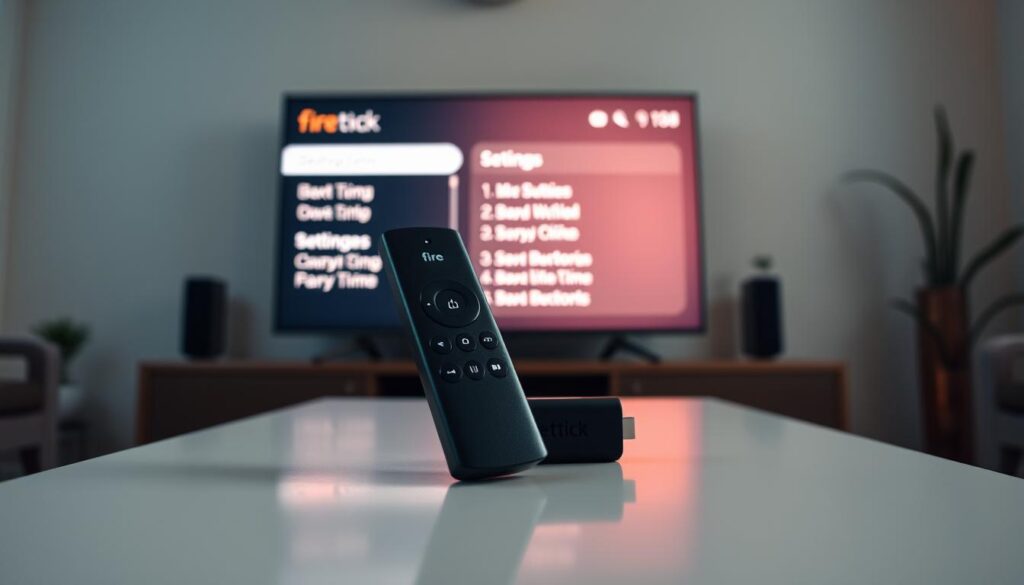
Step-by-step navigation to Developer Options
Start by going to Settings (gear icon) on your Fire TV. Then, choose My Fire TV or Device on older models. Next, find Developer Options. If it’s not there, go to My Fire TV → About and press the Select button seven times on the Fire TV device name. You’ll see a message saying developer mode is on. Go back to My Fire TV and open Developer Options to proceed.
Enabling Apps from Unknown Sources safely
In Developer Options, find the Apps from Unknown Sources toggle. Turn it on. You’ll see a warning dialog; select Turn On to confirm. This lets you install apps using Downloader. Remember, this setting only needs to be done once per device, unless you update your Fire OS or reset your device.
Security and reversibility considerations
Amazon allows sideloading, and you can turn off Apps from Unknown Sources anytime. This limits installs to the Amazon Appstore. Always download APKs from trusted sources to stay safe. IPTV players are apps; ensure your streaming services are legal. If an update disables unknown sources and an app won’t install, just re-enable Firestick developer options again.
- Keep virus scanning tools on your PC for APK checks when possible.
- Verify provider instructions and direct URLs before you sideload apps on Fire TV.
- After setup, disable the toggle if you do not plan to sideload more apps to reduce risk.
Install the Downloader App and Sideload an IPTV Player
Getting an IPTV player on a Fire TV is easy with the right tools. The Downloader app Firestick method saves time and effort. It lets you sideload IPTV on Firestick using short codes or full URLs. Here’s a simple guide and an example for installing IPTV One on Firestick.
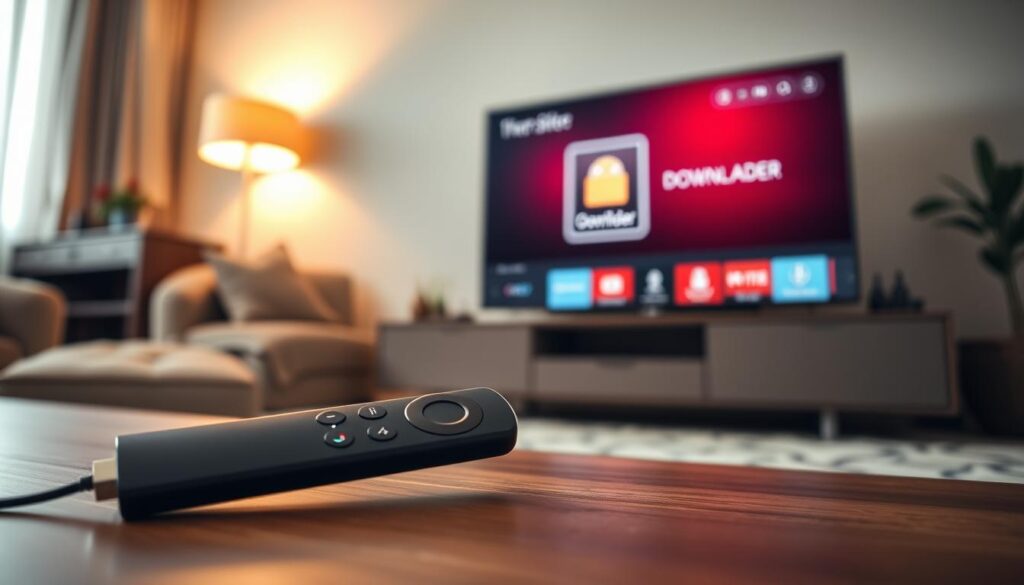
Why use Downloader for sideloading?
Downloader, from AFTVnews, is free and easy to use. It accepts numeric shortcuts and full web addresses. This makes it easier to sideload IPTV on Firestick without typing errors. You don’t need cables since it runs directly on Fire TV devices.
How to install Downloader from the Amazon Appstore
Open Search on the Fire TV home screen and type “Downloader.” Choose the app by AFTVnews with the orange icon. Click Get or Download, then Open. Allow the app to access your device for saving and installing files.
Using Downloader codes or direct URLs to fetch APKs
Downloader supports short numeric codes for full APK links. For IPTV One, enter Downloader code 1411180 into the URL field and press Go. The tool downloads the APK and asks for installation. You can also use a direct URL for quicker loading.
Sideloading IPTV One (example) with Downloader
Enter the Downloader code 1411180 and press Go. The APK downloads quickly. Tap Install and wait for the process to complete. On Fire TV Stick Lite, 4K, and 4K Max, the setup takes under four minutes.
After installation, open the new app from Your Apps & Channels → See All. If IPTV One doesn’t show up, go back to Home or restart the device. Remember, IPTV One is a player; you need to add playlists or provider credentials to watch content.
Configure Your IPTV App and Start Streaming
Start by opening your chosen player on the Fire TV. Most apps will ask if you want to add a playlist or sign in. Make sure you have your IPTV details ready to configure IPTV on Firestick smoothly.
Adding M3U: Choose Add Playlist → M3U URL, then paste the .m3u or .m3u8 link. Give it a clear name like “My Channels” and save. The player will fetch the list and start populating channels. If channels don’t appear, check the URL and subscription status.
Xtream Codes: Select Add Playlist → Xtream Codes. Enter the server URL, username, and password from your IPTV service. Tap Connect and wait for channels, VOD, and EPG to load. Make sure to enter server addresses correctly with http:// or https://.
Stalker Portal: Pick Add Playlist → Stalker Portal. Enter the portal URL and MAC address from your provider, then connect. The app will sync channels and guide data. Use the exact string your service supplied to avoid connection errors.
After import, give the player time to build channel lists and program guides. Large playlists may take longer, depending on network speed and size. If content fails to load, re-enter credentials, test the URL on a PC, or confirm service status with the provider.
The user interface focuses on EPG, favorites, search, and VOD areas. Use the EPG to see current and upcoming shows and jump to live channels. Mark favorite channels for quick access and reduce navigation time.
Search helps find channels, shows, or movies quickly across live and on-demand sections. If your provider supplies VOD, it appears under a dedicated VOD or movies/TV shows tab. Some apps offer cloud sync to keep favorites and settings consistent across devices.
To optimize playback, adjust buffer and player settings in the app. Increase buffer size to 3000ms or more if you see frequent stuttering. Lower the stream resolution from 4K to 1080p to reduce bandwidth demand when needed. Place the Firestick nearer your router or use an Ethernet adapter for a stable link.
If the player crashes or freezes, clear cache and data through Settings → Applications → Manage Installed Applications → [IPTV app] → Clear Cache/Clear Data. Free up storage by removing unused apps. Restart the Firestick after changes to ensure the new settings take effect.
Use this quick troubleshooting checklist: confirm Apps from Unknown Sources remains enabled for sideloaded players, restart the device if apps do not appear, and re-enter exact Xtream Codes Firestick or add M3U Firestick details when channels are missing. These steps help you maintain smooth playback and reduce setup time.
Below is a compact comparison to help decide which playlist method fits your setup, and how to best optimize IPTV playback on Firestick.
| Playlist Method | Typical Inputs | Best Use | Optimization Tips |
|---|---|---|---|
| M3U | .m3u or .m3u8 URL | Simple channel lists and quick imports | Use a stable URL, increase buffer to 3000ms, test on PC first |
| Xtream Codes | Server URL, username, password | Full service access with VOD and EPG | Enter exact credentials, prefer HTTPS, clear cache if streams fail |
| Stalker Portal | Portal URL and MAC address | Operator-style portals with structured EPG | Verify MAC format, allow time for guide sync, use Ethernet for stability |
Conclusion
This iptv on firestick conclusion summarizes the main steps for a quick setup. Start with a compatible Fire TV and a stable internet. Enable Developer Options and Apps from Unknown Sources. Then, install Downloader from the Amazon Appstore.
Use a short Downloader code or a direct URL to sideload an IPTV player like IPTV One. Finally, add your M3U, Xtream Codes, or Stalker Portal playlist to load channels and EPG.
Many users find the install IPTV Firestick recap reassuring. With everything ready, the full install and first-launch setup takes about five minutes. This speed and simplicity make Firestick a top choice for streaming.
Benefits include a wider channel lineup, flexible subscriptions, on-demand libraries, and cross-device playback. These features fit current viewing trends in the United States.
An IPTV One Firestick summary reminds you to choose reputable providers and use exact playlist credentials. Optimize network and buffer settings to reduce interruptions. Switch Apps from Unknown Sources off after sideloading for tighter security.
For specific APK or playlist URLs, follow your provider’s guidance.
This Fire TV IPTV wrap-up encourages you to follow the steps and start exploring. You can enjoy live channels, EPG, VOD, and personal favorites across devices. With the right subscription and a few quick steps, you can stream your favorite content in minutes.