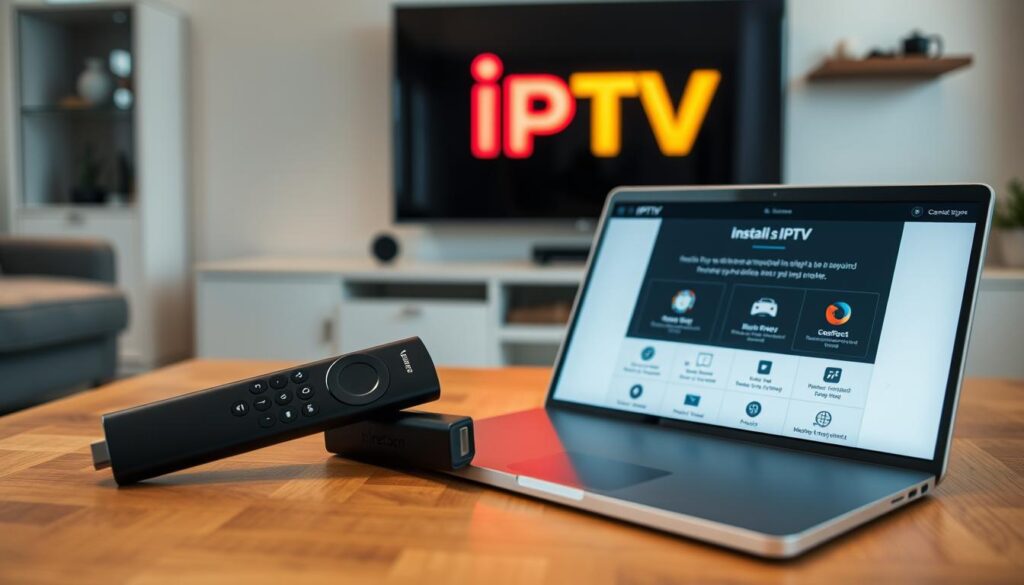
This guide is for viewers in the United States who want to install IPTV on Firestick. The Amazon Fire TV Stick family supports IPTV players and services. You’ll learn how to set up Fire TV Stick IPTV for live TV, video-on-demand, and niche channels.
Our goal is to help both new and experienced streamers. Before starting, make sure your Firestick is connected, you have a stable Wi-Fi network, and an active IPTV subscription. You might need to choose your region and language during the Fire TV setup.
This guide will show you what you need, how to enable apps from unknown sources, install a player, and set up Xtream Codes or M3U playlists. By the end, you’ll be streaming live channels, on-demand content, and specialty programming on your Fire TV device.
Key Takeaways
- Compatible with all current Fire TV Stick models for U.S. users.
- Prepare Wi‑Fi, power, and an IPTV subscription before starting.
- Follow a step-by-step Fire TV Stick IPTV setup to avoid mistakes.
- Expect live TV, VOD, and wide channel selection after setup.
- Region and language prompts can appear during initial Firestick setup.
Why Choose IPTV on Firestick: Benefits and what to expect
Choosing IPTV on Firestick offers many perks. You get a wide range of channels, easy app installs, and plans that fit your viewing habits. Setup is quick, and streaming quality depends on your internet and subscription.
With IPTV, you can access international networks, niche sports, local news, and on-demand content. Social media like Instagram helps find new providers and reviews. This makes it easy to discover specialty channels and series not found in cable bundles.
IPTV is great for saving money. You can pick only the packages you need, which is cheaper than big cable bundles. This way, small households can enjoy premium content without breaking the bank.
Using IPTV on different devices is easy. You can stream on Fire TV Stick, iPhone, Android tablet, and smart TV with the same account. However, streaming quality can vary based on your network and the provider’s servers.
It’s important to check if the channels you want are available in your region. This ensures you get the international channels you’re looking for on your Firestick. Keep in mind that different providers offer different channel guides and lists.
| Feature | What to expect | Why it matters |
|---|---|---|
| Channel variety | Hundreds to thousands of live channels plus VOD | Access to niche content and international programming |
| Subscription flexibility | Monthly, seasonal, or custom packages | Lower monthly spend and tailored viewing |
| Device compatibility | Firestick, phones, tablets, smart TVs, PCs | Watch anywhere with the same login |
| Setup ease | Simple app install and account login | Fast access with minimal technical steps |
| Streaming quality | Depends on internet and provider uptime | Expect HD if bandwidth is sufficient |
Preparing your Firestick: required items and settings
Before you start, make sure you have everything ready. A quick checklist can save you time and make the setup easier. Make sure your Fire TV is up to date and your account settings match the app’s availability.
Here’s a list of what you’ll need. Having these items ready will make the process smoother and cut down on problems later.
Compatible Fire TV Stick models
Not all devices are created equal. Supported models include Fire TV Stick Lite, Fire TV Stick, Fire TV Stick 4K, Fire TV Stick 4K Max, and Fire TV Cube. Pick a model that fits your streaming needs.
For better 4K and more channels, choose a higher-end model. Check your model in Settings before starting.
Internet speed and network tips
Streaming quality depends on your internet speed. Test your connection to ensure it meets the provider’s requirements.
- For HD streaming, aim for 10–15 Mbps download speed.
- For 4K, you’ll need at least 25 Mbps.
- Use 5 GHz Wi-Fi for less interference and lower latency.
- Place the Firestick near the router or use Ethernet for a stable connection.
If you experience buffering, try restarting your router and retest your speed. A stable connection helps avoid playback issues.
IPTV subscription details you’ll need
Have your account information ready before starting. Make sure your subscription is active and the provider offers the right access method.
- M3U playlist URL for playlist-based players.
- Xtream Codes or API login: server URL, username, and password.
- Any recommended player names or APK links from your provider, such as TiviMate.
Keep these details handy so you can easily enter them during setup. An inactive subscription will prevent channel loading.
Firestick remote and power considerations
Power and navigation are key. Use the supplied power adapter for consistent power delivery.
Check your remote batteries and pairing before starting. Weak batteries can cause lag and interrupt sign-ins.
| Item | Why it matters | Quick tip |
|---|---|---|
| Compatible Fire TV Stick models | Ensures smooth playback and feature support | Use 4K Max or Fire TV Cube for best performance |
| Internet speed for iptv | Determines stream quality and buffering | Run a speed test and aim for 15+ Mbps for HD |
| IPTV subscription details | Needed to log in and load channel lists | Store M3U or Xtream Codes info on your phone |
| Firestick remote power tips | Prevents lag and unexpected reboots | Use wall adapter and fresh batteries for stability |
Enable Apps from Unknown Sources and Developer Options
Before you sideload apps on Firestick, you need to change a couple of settings. This guide will show you how to access menus, find hidden developer options, and turn on apps from unknown sources. This way, you can install iptv on firestick using tools like Downloader.
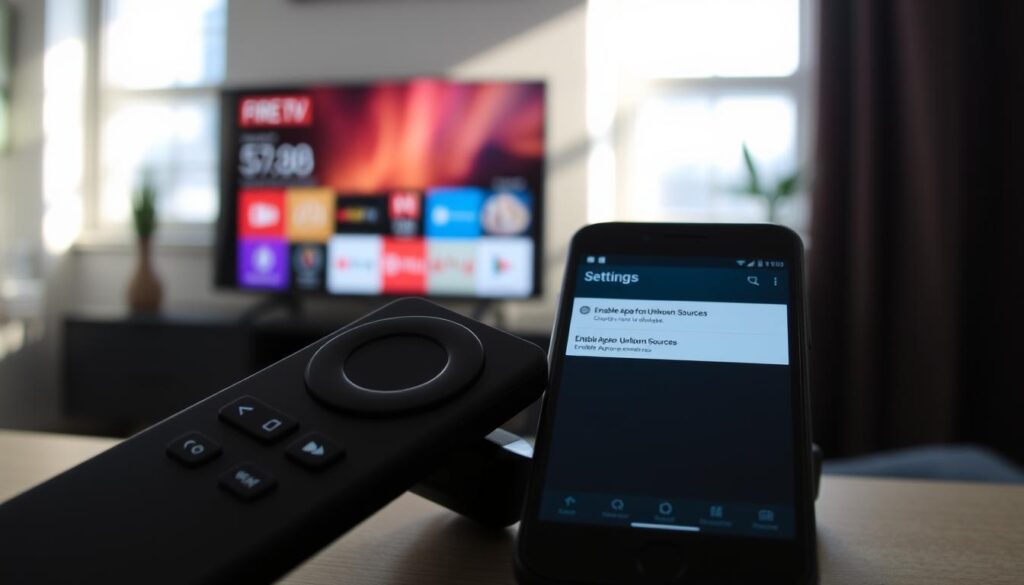
Accessing Firestick Settings
Start by going to the gear icon on the Fire TV home screen. Choose My Fire TV to open the system options. Here, you’ll find the controls for developer options firestick. This is where you make changes to sideload apps firestick.
Enabling Developer Options if hidden
If Developer Options is already visible under My Fire TV, just pick it and move on. If it’s hidden, go to My Fire TV > About. Highlight your Fire TV Stick name and press the Select button seven times. A message will confirm you’re now a developer.
Then, go back to My Fire TV and you’ll see developer options firestick available.
Turning on Apps from Unknown Sources
In Developer Options, choose Apps from Unknown Sources. You can enable it for all apps or just for specific installers like Downloader. A security prompt will pop up; accept it by selecting Turn On.
Confirm any permission dialogs that follow. With this done, you can sideload apps firestick and install iptv on firestick safely.
Install IPTV on Firestick
This section guides you through the steps to bypass Appstore limits and set up IPTV on your Amazon Fire TV Stick. You’ll learn how to install the Downloader app, get the IPTV APK from your provider, and sideload it on your Firestick. This way, you can enjoy M3U or Xtream services.
Why this matters
Setting up IPTV is crucial to start using it. Official stores often block third-party IPTV apps. By learning to sideload IPTV on Firestick, you can use trusted players like TiviMate or apps from your provider. Make sure to use the exact APK link provided by your provider for the best experience.
Install Downloader app from Amazon Appstore
Start by pressing Home on your Firestick Home screen, then select Search. Type “Downloader” and pick the Downloader app from the Amazon Appstore. Choose Get or Download and then Open when ready. You might need to grant some permissions for the app to work properly.
Downloading the IPTV player APK
Get the direct APK URL from your IPTV provider. Open Downloader and enter the full URL, including http:// or https://, then select Go. The file will download to your device. Make sure the link is correct to avoid any issues.
Installing the APK and launching the player
After the download finishes, Downloader will ask to install. Select Install and wait for it to complete. Once installed, choose Done and go back to Apps & Channels on your Firestick home screen. Find the new app and launch it to set it up with your M3U or Xtream credentials.
Tip: If your provider recommends a specific player APK or gives custom steps, follow those instructions for the smoothest setup experience.
| Step | Action | Why it matters |
|---|---|---|
| 1 | Enable Apps from Unknown Sources | Allows installation of third-party APKs not listed in the Amazon Appstore |
| 2 | install downloader app firestick | Provides a safe, simple tool to fetch APKs directly to the Firestick |
| 3 | download iptv apk firestick | Get the exact APK your IPTV provider supplies for compatibility |
| 4 | sideload iptv on firestick | Install the APK and launch the app to access channels and guides |
Configure your IPTV player: Xtream Codes and M3U setup
To get channels on your Fire TV, you need the right setup. You can use Xtream Codes/API for easy login or an M3U playlist URL if your provider offers it. This guide will help you set up your IPTV player on Firestick, log in with Xtream Codes, add M3U playlists, and manage your IPTV profiles.
Logging in with Xtream Codes/API
Open your IPTV app and choose “Login with Xtream Codes API” or similar. Enter your username, password, and server URL as given by your provider. Make sure to include the full address with http:// or https:// if needed.
Give your profile a clear name, like “Home IPTV.” Then, select Login or Add User. It might take a few moments for channel lists and guides to appear after logging in with Xtream Codes.
Adding an M3U playlist URL
If you have an M3U playlist, choose Add Playlist or Add URL in the player. Paste the M3U link into the field and name it, such as “My Channels.” Save it and wait for the app to fetch channels and categories.
Using M3U is good for basic lists and quick setups. You can switch between Xtream and M3U profiles if your player supports both.
Best practices for naming and managing profiles
Double-check usernames, passwords, and URLs to avoid login errors. Use clear names for each account to manage multiple subscriptions. Keep provider credentials safe and don’t share them.
Export or back up profiles when possible. Backups are helpful after upgrades or when reinstalling the player. They save time and effort in restoring settings.
| Setup Method | When to Use | Steps |
|---|---|---|
| Xtream Codes / API | Preferred for full EPG, VOD, and category structure | Open app → Login with Xtream Codes API → Enter username, password, server URL → Name profile → Login |
| M3U Playlist URL | Best for simple channel lists or quick imports | Open app → Add Playlist/Add URL → Paste M3U link → Name playlist → Save |
| Profile Management | Useful when you have multiple subscriptions or devices | Name profiles clearly → Keep credentials secure → Export or back up profiles regularly |
Navigating, personalizing, and troubleshooting IPTV on Firestick
After installing IPTV on Firestick, getting familiar with the player layout is key. Most players have an electronic program list. This list shows what’s live and what’s coming up. Use it to plan recordings or to find what you want to watch easily.
Using the EPG and channel guide
The EPG guide on Firestick shows channel schedules, thumbnails, and details. Open the guide to see start and end times. Press the remote center to tune in. If listings seem off, check your region and language settings.
Set EPG time offsets if schedules don’t match. Small adjustments keep live events and sports in sync.
Favorites, search, and on-demand content
Mark channels as favorites for quick access. Use the IPTV favorites search vod feature to switch between live channels and on-demand content. Search fields accept channel names, program titles, or actor names for fast results.
Create playlists for kids, news, and sports. Organized lists make switching between subscriptions easier and reduce scrolling time.
Common issues and fixes
Buffering often comes from slow network speed. Restart your router, move the Firestick closer to Wi-Fi, or try a 5 GHz band. For the best stream, use an Ethernet adapter.
If channels fail to load, check Xtream Codes credentials or your M3U URL for typos. Confirm your subscription is active. For app crashing, clear cache and data under Settings > Applications. Reinstall the app if problems continue.
Optimizations for a smoother experience
Use the supplied AC adapter to power your Fire TV Stick. This avoids power-related issues. Keep Fire OS and the IPTV app updated for the latest codecs and security patches.
To improve IPTV Firestick performance, name and group playlists for quick switching. Test different players if one app struggles with your streams. Regular maintenance and a wired connection will reduce playback issues.
Quick troubleshooting checklist:
| Problem | Likely Cause | Quick Fix |
|---|---|---|
| Frequent buffering | Slow Wi-Fi or network congestion | Switch to 5 GHz or Ethernet; restart router |
| Channels not loading | Incorrect M3U URL or expired subscription | Verify credentials; update playlist URL |
| App crashes | Corrupt cache or outdated app | Clear cache; reinstall app; update Fire OS |
| EPG shows wrong times | Region or time offset mismatch | Adjust Firestick region; set EPG time offset |
By following these steps, navigating IPTV on Firestick becomes easy. Keep a short testing loop when adding new playlists. This habit makes troubleshooting IPTV on Firestick faster and improves your daily use.
Conclusion
Setting up IPTV on your Firestick in 2026 is easy if you know the steps. First, make sure your Fire TV Stick is compatible. Then, check your internet speed. Next, enable Developer Options and Apps from Unknown Sources.
Install Downloader, then sideload an IPTV player APK. Finally, set up the player with Xtream Codes or an M3U playlist. This guide helps you install IPTV on Firestick smoothly.
Before finishing the IPTV setup on Firestick, check your subscription details. Make sure they match the provider’s instructions, like those from iptvbestprovider.org. Also, verify your region and language settings.
Small tweaks can make a big difference. Improve your Wi-Fi, use a stable power source, and keep your Firestick firmware updated. These steps reduce buffering and enhance playback.
If playback or guide data seems wrong, try basic troubleshooting. Restart the Firestick, reload the playlist, and check your credentials. Once everything is set, start streaming IPTV on Firestick.
Explore your favorites, search, and on-demand libraries. Tailor them to your preferences. If needed, refer back to this guide for any step in the setup process.