“The great thing about technology is that it can liberate us from old limits — if we know how to use it.” — Tim Berners-Lee
Welcome to the free IPTV Internet Speed calculator for 2026. This tool helps you choose the right internet speed for streaming. You can pick the streaming quality and how many devices will use it at once. It suggests a speed and then recommends adding more to avoid buffering.
IPTV Internet Speed is important because it shows how fast your internet can handle live TV and on-demand content. While upload speed is less critical, issues like latency and packet loss can ruin live events. It’s all about consistency, not just the speed.
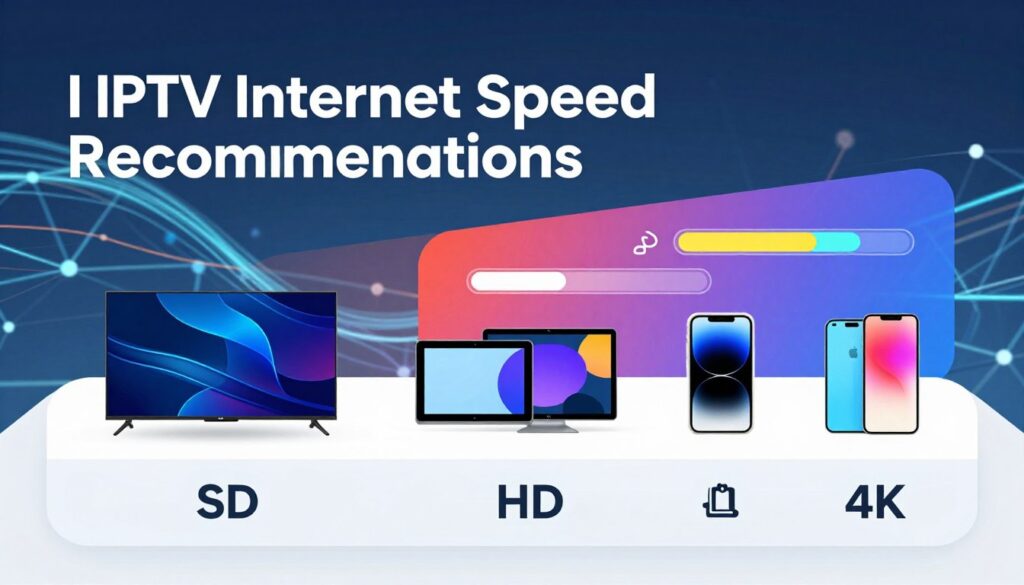
This calculator and free IPTV speed tool are based on real needs. SD streams need 3–5 Mbps, HD about 5–10 Mbps, and 4K 20–25+ Mbps per stream. Make sure to plan for all users, use Ethernet for set-top boxes, and consider upgrading your router to Wi‑Fi 5 or 6.
Key Takeaways
- Use the iptv internet speed calculator to match plan speed to stream quality and device count.
- Target IPTV Internet Speed, then add 10–20% headroom to avoid buffering.
- Download speed is primary; watch latency, jitter, and packet loss for live TV.
- Prefer Ethernet for set-top boxes and upgrade routers to Wi‑Fi 5/6 for reliability.
- Free IPTV speed tool guidance helps plan for multi-device households and 4K requirements.
Why an IPTV Internet Speed Calculator Matters in 2026

IPTV brings live TV and on-demand shows over the internet, not cable or satellite. This change means we can’t just look at download speeds. Viewers want smooth playback, quick channel changes, and clear pictures. A calculator helps figure out if a plan’s speed meets these needs.
Understanding bandwidth and streaming needs is key. Streaming video uses much more bandwidth than browsing or email. Advertised speeds might not match real-world performance due to overhead and route issues. This is especially true during peak hours or when the internet is congested.
Streaming has changed how we watch TV. IPTV offers more flexibility than cable, but it also has its own challenges. Issues like congestion, routing problems, and wireless interference can affect streaming quality.
Latency, jitter, and packet loss are critical for live events. A calculator helps ensure these metrics are considered. Regular tests show patterns that a single speed check might miss.
When bandwidth is too low, viewers face problems. IPTV buffering causes pauses, and low speeds lead to poor picture quality. Sudden drops in quality can ruin live events. Adding a 10–20% safety margin helps avoid these issues and keeps streams smooth, even with multiple devices connected.
| Issue | Cause | Calculator Insight |
|---|---|---|
| Buffering pauses | Insufficient sustained download speed during peak hours | Recommend higher sustained Mbps and test for evening performance |
| Pixelation | Temporary drops in throughput or codec fallback | Suggest headroom above minimum per-stream Mbps to avoid quality drops |
| Stream dropouts | High packet loss, routing issues, or Wi‑Fi instability | Highlight need to measure packet loss, jitter, and consider wired connections |
| Poor live responsiveness | High latency and jitter affecting channel change and live sync | Advise latency targets and repeated tests for consistency |
IPTV Internet Speed
Understanding IPTV Internet Speed is simple. It’s about how fast content gets to your device. When we talk about internet speed for streaming, we mean download speed for IPTV. This speed affects whether a show plays smoothly or not.
Definition and importance of download speed for IPTV
Download speed for IPTV shows megabits per second to your device. Faster speeds mean less buffering and better picture quality. But, real-world speeds are often lower due to overhead and encryption.
Role of latency, jitter, and packet loss in live TV and on-demand viewing
Latency, jitter, and packet loss show how stable your network is. Latency affects live feeds and commentary timing. Jitter causes brief freezes in fast scenes.
Packet loss leads to micro-freezes or missing frames. A single speed test isn’t enough. You need consistent performance for live TV and on-demand playback.
Why upload speed usually matters less unless broadcasting
Upload speed IPTV is how fast your home sends data. For most, it’s less important since streams come to you. But, it’s crucial for livestreaming, surveillance, or video calls.
Check both download and upload speeds for simultaneous needs. For just watching, focus on a stable download rate and low latency jitter packet loss.
How the Free IPTV Internet Speed Calculator Works
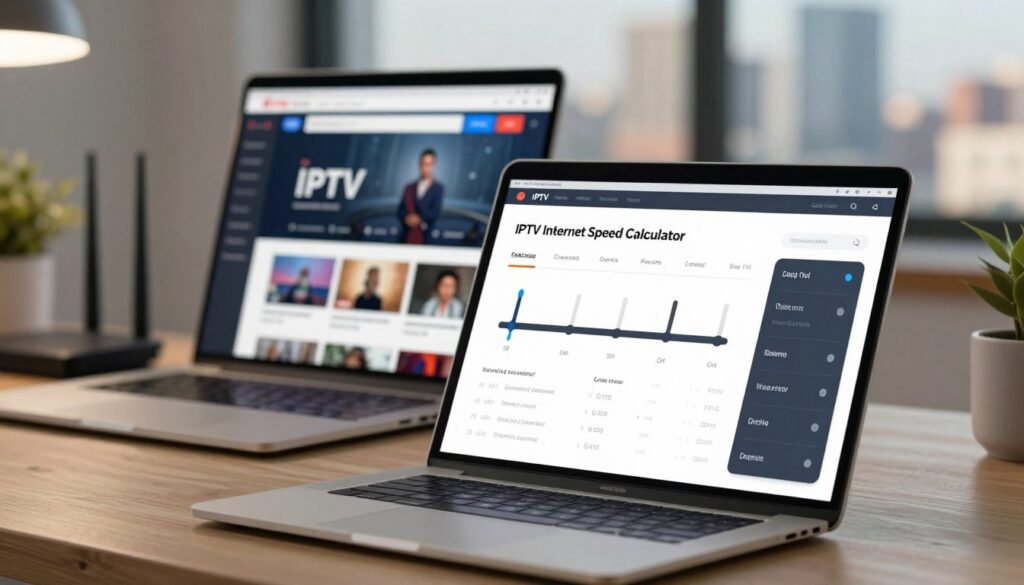
The free IPTV Internet Speed calculator makes it easy to find the right bandwidth for your needs. First, pick the streaming quality for each device. Then, enter how many devices will stream at once. Lastly, note any heavy background use like cloud backups or gaming.
Inputs required
Start by choosing the streaming quality for each device. You can pick SD, HD, or 4K. Then, add the number of devices streaming at once. Also, flag any heavy background use like web meetings or downloads.
The tool then converts these inputs into clear numbers. It shows the needed bandwidth for each stream and the total for your household. It also considers factors like bits-versus-bytes conversion and protocol overhead.
How calculations are done
The calculator starts with a baseline for each device quality. It then multiplies this by the number of streams. This gives you a total recommended speed for your household.
It shows both the minimum needed for each stream and the total household target. This makes it easy to compare different scenarios. For example, you can see the difference between two HD streams and one 4K stream versus four HD streams.
| Stream Type | Per-Stream Minimum | Example: 3 Simultaneous Streams | Notes |
|---|---|---|---|
| Standard Definition (SD) | 3–5 Mbps | 9–15 Mbps | Good for older devices and mobile viewing |
| High Definition (HD) | 5–10 Mbps | 15–30 Mbps | Most smart TVs and streaming sticks perform well |
| 4K / Ultra HD | 20–25+ Mbps | 60–75+ Mbps | Use wired connections for consistent results |
Built-in safety margin
The tool suggests adding a 10–20% buffer to avoid buffering. This buffer accounts for real-world network issues like latency and packet loss. Use a speed test to check these metrics and validate your network.
For long-term planning, the calculator can show monthly usage in sustained bandwidth. This helps you understand how your streaming and downloads affect your plan needs. Use the calculator and speed tests to ensure your plan matches your actual use.
Recommended Speeds by Quality and Devices
Choosing the right plan means knowing the right speed for each stream. Here are some IPTV Internet Speed recommendations for single streams and small homes. Remember to add more speed for gaming, uploads, and updates in the background.
Standard Definition guidance
For watching in standard definition, aim for 3–5 Mbps per stream. This range ensures smooth playback on older smart TVs and set-top boxes.
In homes with many devices, multiply the speed by the number of SD viewers. Then, add at least 10% extra for overhead.
High Definition planning
High definition streams (720p and 1080p) need 5–10 Mbps per stream. Use the lower end for compressed 720p and the higher end for full 1080p from services like Hulu Live and YouTube TV.
When setting up multiple devices, test the speed under load. This confirms if the advertised speed holds up during peak times.
4K and Ultra HD recommendations
For 4K/Ultra HD, aim for at least 20–25+ Mbps per stream. Major providers like Netflix and Amazon Prime suggest similar speeds to keep HDR and high-bitrate content quality.
Make sure to give each 4K stream plenty of headroom. Add 15–25% above the minimum to handle bursts and simultaneous transfers.
| Quality | Recommended Mbps per stream | Practical tip |
|---|---|---|
| Standard Definition | 3–5 Mbps | Multiply by number of viewers; add 10% overhead |
| High Definition | 5–10 Mbps | Test multi-device performance during peak hours |
| 4K / Ultra HD | 20–25+ Mbps | Allow 15–25% headroom for stable playback |
Factors That Affect IPTV Performance Beyond Raw Speed
Streaming quality isn’t just about speed. Small problems in home networks, ISP paths, and device counts can hurt performance. This can lead to buffering or poor picture quality. Here are the key non-speed factors to check when IPTV issues arise.
Number of connected devices and simultaneous usage
Every device, like phones, tablets, smart TVs, and game consoles, uses the same internet connection. Streaming multiple things at once can reduce bandwidth and increase latency. It’s wise to plan for peak usage by counting devices and adding a buffer to recommended speeds.
Wi‑Fi vs Ethernet: why wired is more reliable
Wi‑Fi is easy to use, but walls, distance, and appliance interference can lower its performance. A wired connection, on the other hand, keeps packet loss and jitter low. It offers consistent throughput for devices like set-top boxes and streaming sticks.
ISP throttling, network congestion, and peak-hour slowdowns
ISPs might slow down streaming traffic during busy times or on certain plans. Network congestion, whether local or backbone, can cause sudden quality drops. Even if speeds look good, tests at different times can show patterns.
Use deep diagnostic tools and cloud-based route analysis to find where latency and packet loss start. Stress tests on multiple devices can reveal failures during peak times that single-stream tests miss.
Remember, protocol overhead and real-world inefficiencies reduce usable throughput. Mobile broadband profiles are different from fiber or cable. So, consider typical connection types when planning for your household.
Choosing the Right Internet Plan for IPTV Streaming
When your family uses IPTV, plays games, and works from home, the right internet plan is key. First, figure out how much bandwidth your household needs. This ensures you can stream, video call, and upload without slowdowns.
Estimating total household bandwidth needs
Make a list of all activities happening at once. For example, include a 4K stream, two HD streams, a game, and a Zoom call. Then, add up the bandwidth each activity needs. Experts say choose a plan that’s 10–20% more than your total to handle peaks and router issues.
When to pick higher-tier plans and why burst speeds aren’t enough
Don’t be fooled by peak speeds. They don’t tell you about sustained performance, latency, or how well a plan works under load. For heavy use, go for a higher plan that offers steady speeds and low latency. Test your plan at different times to make sure it meets your needs.
Data caps and monthly usage considerations for heavy IPTV households
Streaming, especially in 4K, uses a lot of data. Convert your monthly viewing into gigabytes to compare with your ISP’s limits. Check your ISP’s data cap policies to avoid extra fees. Heavy users should look for plans with plenty of data or no limits. Use a bandwidth calculator to keep track of your usage.
Here’s a quick guide to help you choose the best internet plan for IPTV at home.
| Typical Household Profile | Estimated Sustained Need | Recommended Plan Tier | Notes on data caps IPTV |
|---|---|---|---|
| 1–2 people, mostly SD/HD streaming | 15–50 Mbps | 50–100 Mbps | Monthly use low; basic caps usually fine |
| Family, multiple HD streams + gaming | 100–300 Mbps | 200–500 Mbps | Check mid-tier caps; consider unlimited if available |
| Large household, 4K streams, remote work | 300–800+ Mbps | 500 Mbps – 1 Gbps | Prefer unlimited plans to avoid overage risk |
| Power users, simultaneous uploads and streaming | 500 Mbps – 1 Gbps+ | 1 Gbps or business-class | Business plans may offer higher caps or truly unlimited data |
Optimizing Your Home Network for IPTV
Good streaming starts with a tuned home network. Small hardware changes and simple settings can cut buffering and keep picture quality steady for live TV and on-demand viewing.
Router upgrades make a big difference. Moving from an older dual-band router to a Wi‑Fi 5 or Wi‑Fi 6 model boosts throughput and reduces latency for multiple clients. For large homes, a mesh system from Netgear, Asus, or TP-Link spreads consistent coverage to eliminate dead zones.
When you consider a router upgrade IPTV buyers should check for WPA3 support, multi-gig Ethernet ports, and WPA3. These features help the network reach advertised speeds while handling many concurrent streams.
Use Ethernet for set-top boxes and smart TVs whenever possible. A wired link avoids common radio issues and keeps a stable baseline speed. If you must use wireless, place the TV or set-top box near a strong node on a mesh system to limit drops.
Configure QoS settings to prioritize streaming. QoS IPTV rules let the router favor upstream and downstream traffic from your IPTV device over large file transfers and cloud backups. Test different priority profiles to find one that reduces jitter on live channels.
Pick clean Wi‑Fi channels on 2.4 GHz and 5 GHz bands to lower interference from neighbors. Many routers include automatic channel selection. Manual scans with a phone app can reveal crowded bands and help you choose a quieter channel.
Limit background activity during prime viewing times. Pause large updates, cloud backups, and scheduled downloads while streaming. This preserves usable bandwidth and improves perceived responsiveness for interactive apps and live sports.
Stress-test your setup with multiple devices to validate IPTV Internet Speed optimization. Run a speed test, stream a 4K channel, and start a cloud backup to see how the network behaves under load. Adjust QoS IPTV rules and device placement until streams remain smooth.
Remember protocol overhead and congestion when planning bandwidth. Real-world throughput often sits below headline numbers. Practical IPTV Internet Speed optimization combines hardware, settings, and scheduling to get the best possible viewing experience.
Testing and Tools: Which Speed Tests Give Reliable IPTV Data
Use the IPTV Internet Speed Calculator with real-world tests for a clear view of your network. A single test might not be enough. Test at different times and under typical load to see how your network really performs.
For a quick check, use simple one-tap tests. These are great for a fast check on a phone or tablet before watching a show. For more detailed insights, choose tools that show latency, jitter, and packet loss. This helps you see how smooth your live streams will be.
Why consistency matters more than flashy charts
Consistent results are better than a single high number. Test at different times to see how your network behaves during peak hours. This way, you can spot issues like ISP throttling or neighborhood congestion that one-off tests might miss.
Key metrics to test
- Download and upload speeds for raw capacity.
- Latency for channel switching and live timing.
- Jitter and packet loss tests to measure stream stability.
- Multi-sample runs to find averages and outliers.
Tool types and when to use them
- One-tap speed tests: quick status checks before streaming.
- Comprehensive diagnostics: give the full set of latency jitter packet loss tests for power users.
- Cloud-based route analysis: map where delays occur between your home and streaming servers.
- Real-time multi-device stress tests: simulate family viewing plus smart home traffic to find weak points.
Look for an iptv internet speed tool that links test data to expected stream counts and monthly usage. Use bandwidth conversion to translate Mbps into practical limits. Remember, protocol overhead can reduce usable throughput compared with raw plan numbers.
For the best confidence, pick the best speed test for IPTV that reports both throughput and network health. Combine results with the calculator to tune settings. Choose plans from Comcast, AT&T, or Verizon, and set realistic expectations for 4K and HD viewing across multiple devices.
Common Troubleshooting Steps When IPTV Stutters
First, use the IPTV Internet Speed Calculator to find the right speed for your home. Then, do a speed test to see if your internet matches the calculator’s suggestion. Look at download speed, latency, jitter, and packet loss to help fix your IPTV issues.
Try switching from wireless to a wired connection to avoid interference. For devices like set-top boxes and smart TVs, see if using Ethernet instead of WiFi fixes the problem. If it does, consider upgrading your router or adding more wired connections for busy devices.
Try to limit activities that use a lot of bandwidth when you’re watching IPTV. Stop big downloads and updates during prime time. Use Quality of Service (QoS) settings on your router to make sure streaming gets priority when many devices are connected.
Do tests with multiple devices and cloud diagnostics to find where the problem is. Try to make the stutter happen again with known workloads. This will help you figure out if the issue is local, with your ISP, or further upstream. Regular testing can help you find patterns and fix IPTV buffering.
If your internet speed is always lower than expected, talk to your Internet Service Provider. They might be dealing with congestion or throttling. Check your plan’s details and data limits before you call them. If your ISP is shaping your traffic, think about using a VPN to avoid throttling. Choose a VPN provider that is reputable and knows the service terms.
Here’s a quick checklist to help you troubleshoot IPTV stuttering:
| Step | Action | Why it helps |
|---|---|---|
| 1 | Run IPTV Internet Speed Calculator and a speed test | Sets a target and shows real-world performance |
| 2 | Compare download, latency, jitter, packet loss | Identifies the metric causing stutter |
| 3 | Switch to Ethernet for set-top boxes | Resolves wireless interference and weak signals |
| 4 | Run multi-device stress tests and route diagnostics | Shows if issue is local, ISP, or upstream |
| 5 | Limit background traffic and enable QoS | Frees bandwidth for live streams |
| 6 | Contact ISP and check for throttling; consider VPN | Addresses persistent slowdowns and traffic shaping |
Conclusion
This IPTV Internet Speed summary highlights the main points. Choose the right download speed for each stream: SD needs 3–5 Mbps, HD 5–10 Mbps, and 4K 20–25+ Mbps. Always add a 10–20% safety margin.
Prefer wired connections over wireless. Use the free IPTV Internet Speed Calculator for regular speed tests. This helps catch issues before they ruin your viewing.
When planning for 2026, measure download, upload, latency, jitter, and packet loss. Use both quick tests and detailed diagnostics. Modern routers and mesh systems help a lot.
Limit background activity to improve stability. This reduces buffering and dropouts.
Follow the best practices for IPTV. Consider protocol overhead and monthly data when picking plans. Convert per-stream needs to total household bandwidth.
Stress-test during peak hours. Combine recommended speeds, network optimization, and reliable testing for the best viewing experience.